Fingerprint attendance system for Jordan, connected to your devices and payroll
Aspirations is a fingerprint attendance system for companies in Jordan that already have, or plan to buy, ZKTeco-style devices. Punches from every branch arrive in one log, are matched to rosters and shifts, and turn into lateness, early leave and overtime that flow into payroll without anyone copying numbers from a USB stick.
- Works with ZKTeco devices over ADMS cloud push
- A local bridge or file import for older devices
- Branches, shifts and night rosters on one live board
- Overtime and lateness feed payroll automatically
The fingerprint device works. The rest is manual.
Most companies in Jordan have a fingerprint device at the door. The trouble starts when someone has to turn its records into payroll.
The challenge
Records stuck on the device
Someone downloads the log by USB at month end, opens it in a spreadsheet and works out lateness by hand.
With Aspirations
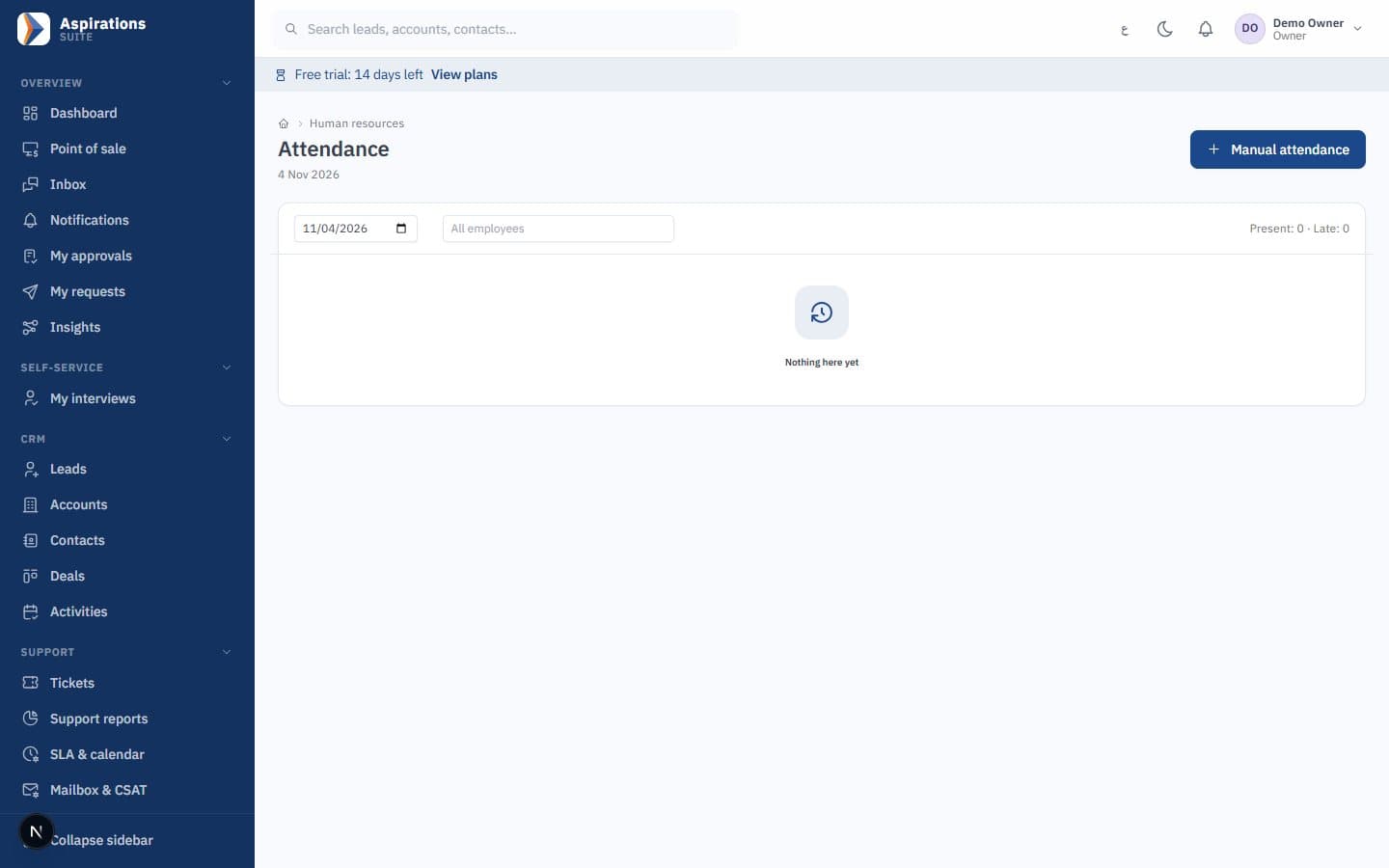
Punches arrive in real time from devices that push to the cloud, or every few minutes through a small bridge in the office.
The challenge
Every branch is a separate island
Each branch sends its own file, in its own format, and nobody knows a device has stopped until salaries are wrong.
With Aspirations
Each device belongs to a branch, its online status is visible, and you get an alert when a device goes silent.
The challenge
Overtime typed into payroll again
HR recalculates overtime and lateness for every employee and retypes the totals into the payroll sheet.
With Aspirations
Overtime and lateness minutes are written to payroll input automatically, ready for review and approval.
An attendance system that works with the fingerprint device you already have
You usually do not need new hardware. The system is designed for ZKTeco firmware that supports ADMS (Push 2.x), which covers most fingerprint and face devices sold in Jordan.
- ZKTeco models — For example K40 and K50 Pro, MB160, MB360 and MB460, SpeedFace-V5L, ProFace X, iClock, uFace and SilkBio.
- ZK-compatible brands — Devices that speak the ZK protocol, such as Granding, ESSL, Timmy and Anviz in ZK mode.
- Newer firmware — Devices on Push 3.x connect through their legacy ADMS mode or through the local bridge.
- Your exact model — Firmware differs between batches, so we confirm your exact model and firmware during setup, before you rely on it.
Three ways punches reach the system, one clean attendance log
However a punch arrives, it lands in the same log. Duplicates are removed, so a punch that comes through two routes is counted once.
- Cloud push (ADMS) — Set the server address and port on the device and punches arrive in real time. If the internet drops, the device stores its logs and resends them when it reconnects.
- Local bridge — A small program on an office PC reads devices on the local network (ZK protocol, port 4370) every 2 minutes and uploads over HTTPS with a site token. It is read-only and never clears the device.
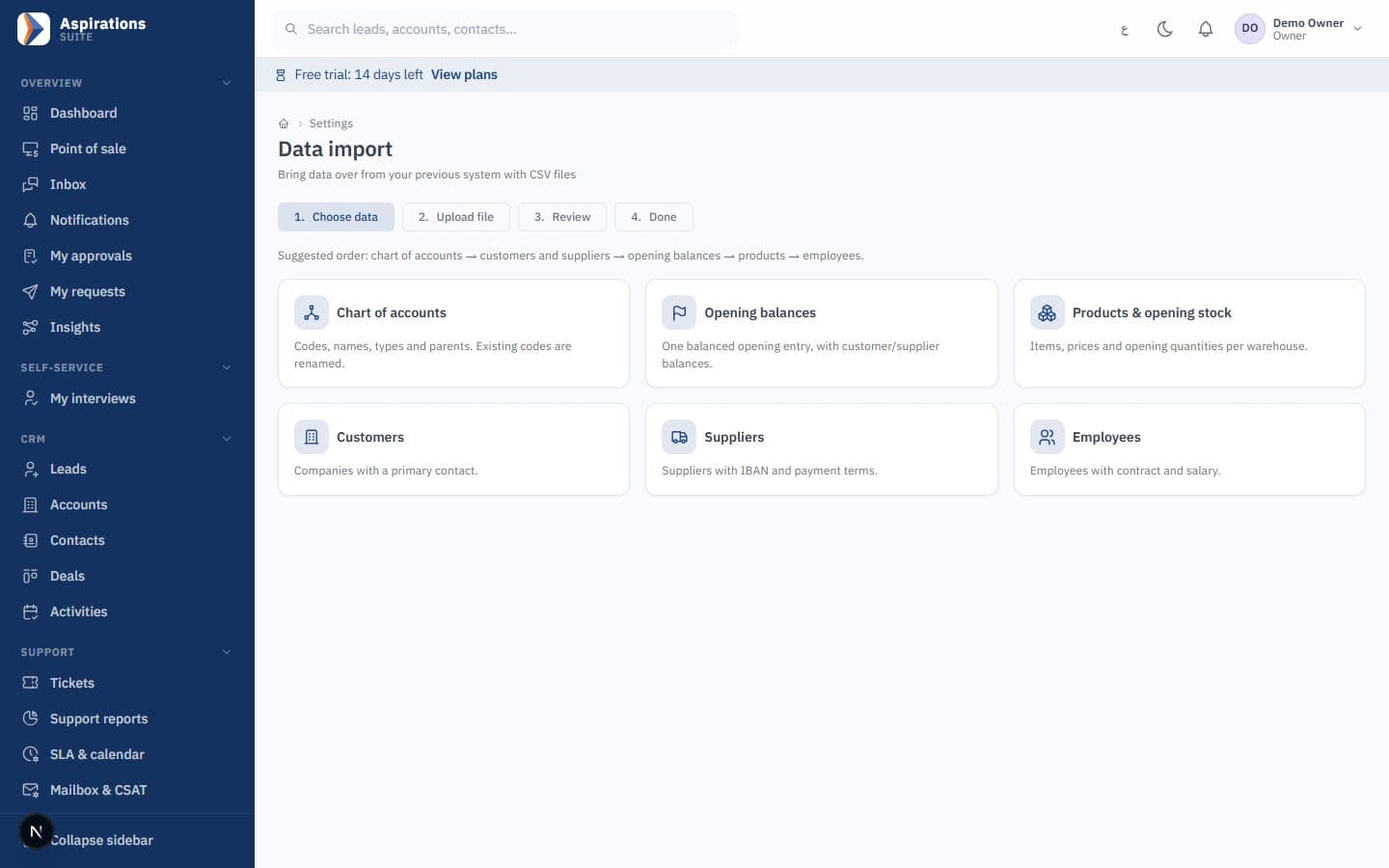
- File import — Upload the 1_attlog.dat file from a USB stick, or a CSV or Excel export from ZKTime or ZKBioTime. Arabic headers are fine, errors are previewed, and the file is saved all or nothing.
- Safe to repeat — Uploading the same file twice, or importing a period the bridge already sent, skips the duplicates.
Which connection method fits you?
Most companies use cloud push. The other two methods exist for older devices, strict networks and historical data.
| Method | Cloud push (ADMS) | Local bridge | File import |
|---|---|---|---|
| Best for | Devices with Cloud Server Setting | Devices without ADMS, or networks that block outbound traffic from devices | Old data, or a branch with no network |
| What you need | Internet on the device | An office PC on the same network with internet | A USB stick or a ZKTime/ZKBioTime export |
| How fresh | Real time | Every 2 minutes | When you upload |
| If the internet drops | The device keeps logs and resends | The bridge catches up on the next read | Not affected |
You can mix methods: head office on cloud push, a warehouse through the bridge, and last year's records by file import. The log stays deduplicated.
Connect your ZKTeco fingerprint device in six steps
For devices that support ADMS. Menu names vary slightly between models; we walk through it with you.
Add the device
In Aspirations, add the device with its serial number (found under the device's system information) and choose its branch and work location.
Open communication settings
On the device, go to Menu, then Comm., then Cloud Server Setting.
Set server mode
Choose ADMS as the server mode and enter the server address and port we give you.
Restart the device
Restart so the device connects. Its status turns online in the devices screen, and new punches start to appear.
Map employee numbers
The device user number (PIN) is matched to the employee number automatically. Any punch without a match waits on a screen where HR assigns it.
Sync names
Optionally send employee names and numbers to ADMS devices, so new staff do not need to be typed on each device.
Multiple branches and devices on one live attendance board
Whether you have one office in Amman or branches across Jordan and Saudi Arabia, every device reports to the same place.
- Branch and time zone — Each device is tied to a branch or work location and its time zone, so punches are recorded in local time.
- Device health — See which devices are online or offline, and get an alert when a device has been silent for more than 30 minutes. The threshold is configurable.
- Live board — Who is present, late, absent, on leave or missing a punch, right now, by branch.
- Daily lateness digest — Optionally receive a daily notification summarising who was late.
Shifts, rosters and how each working day is calculated
Raw punches only become useful when they are compared with the shift each employee was supposed to work.
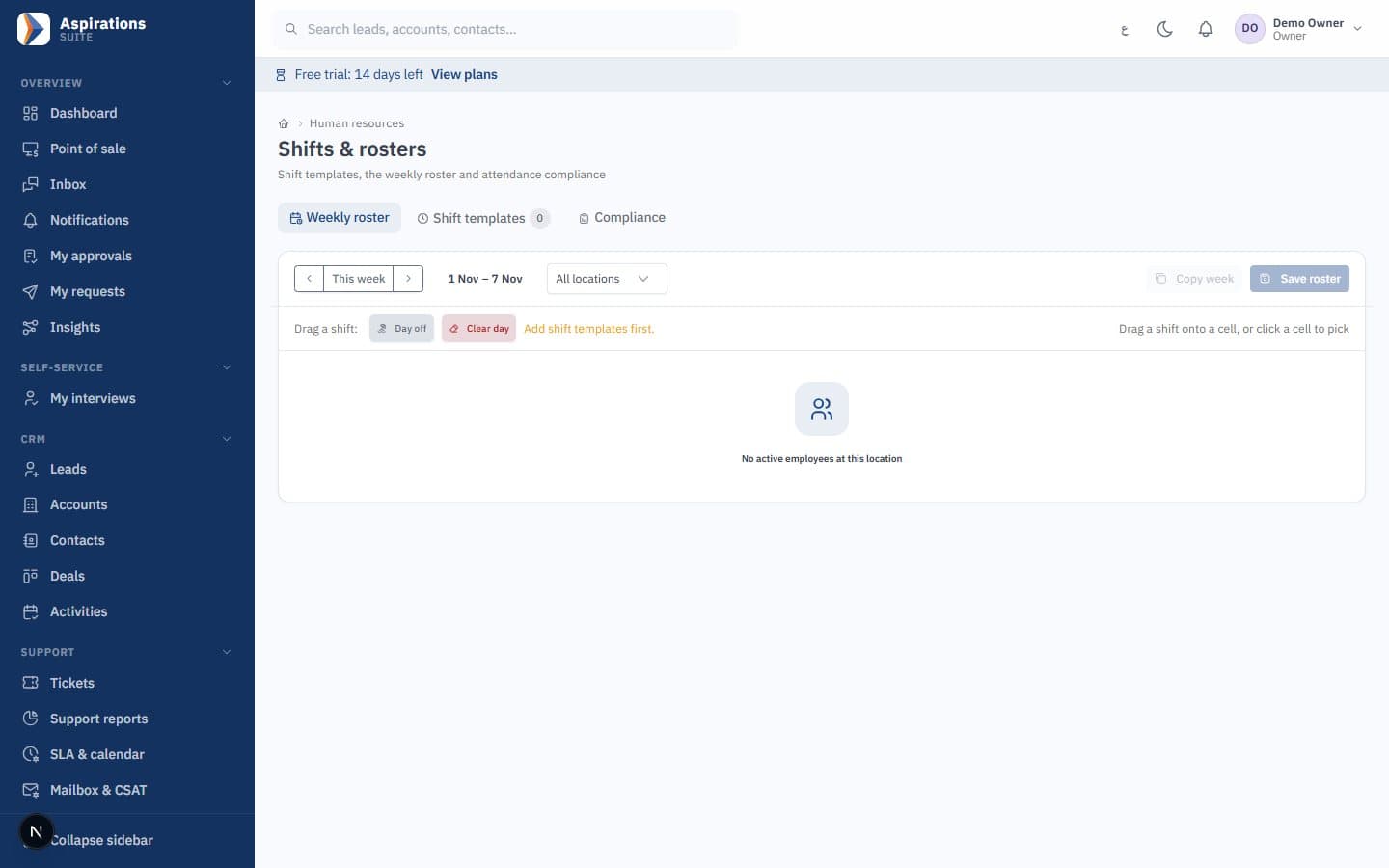
- Rosters and shift templates — Weekly rosters built from shift templates, including night shifts that end the next day.
- Pairing rules — Use the first and last punch of the day, or in/out pairs for split shifts and breaks. Repeat punches within 2 minutes are ignored.
- Weekends — Weekend days are configurable per company. The default is Friday and Saturday.
- Day results — Lateness, early leave and overtime in minutes, plus missing punch, absent or on leave for each employee and day.
From attendance to payroll
Attendance matters because of what it does to salaries. In Aspirations, attendance and payroll share the same employees, so the link is direct:
- Overtime minutes are written to payroll input automatically. Jordan's Labour Law sets overtime at no less than 125% of normal pay on working days and 150% on weekly rest days and holidays. The default multiplier in payroll is 1.25 and HR can edit it.
- Lateness minutes are also written to payroll input, so HR reviews them before approving the month rather than calculating them.
- Absence deductions stay a manual decision. Some absences are later covered by sick leave or an approved request, so the system flags them and HR decides.
- Leave approved in the system shows the day as on leave rather than absent, and balances stay accurate. Annual leave in Jordan is 14 days, or 21 after five consecutive years with the same employer.
See how the payroll side works on the payroll software page, or check a balance with the annual leave calculator.
Corrections with approval, and check-in from the phone
Forgotten punches happen. What matters is that fixing them leaves a trail.
- Employee requests — An employee who forgot to punch requests a correction from self-service, with the time and a reason.
- HR approval — HR approves, optionally through your approval rules. Nobody can approve their own request.
- Manual edits need a reason — When HR edits attendance directly, a reason is required and the change history is kept.
- Phone check-in with geofence — Field staff and sales reps check in from their phone browser, and the system records whether they were inside their work location. It complements devices, it does not replace them.
Details that matter to HR teams in Jordan
Small choices that make the attendance system fit how companies here actually work.
Fingerprints stay on the device
Fingerprint and face templates never leave the device. The system receives only the user number and the time, and attendance photos are not stored.
Arabic and English
Every screen in Arabic with a right-to-left layout, and in English. File imports accept Arabic headers.
Friday and Saturday weekend
The default weekend matches most companies in Jordan, and you can change it.
Night shifts
Shifts that cross midnight are counted as one working day.
Geofenced check-in
Phone check-in records whether the employee was inside the work location.
Payroll in the same system
Overtime and lateness reach payroll, which calculates social security and income tax.
Related guides
- Overtime and public-holiday pay in Jordan: how to calculate it
- Connecting a ZKTeco fingerprint device to payroll: complete guide
- Shift scheduling: how to build a roster within Jordan's working-hours rules
- Fingerprint vs face vs card vs mobile attendance: which should you choose?
- Annual leave under Jordanian labour law: 14 or 21 days?
- How to calculate the daily wage in Jordan: divide by 30 or 26?
- All guides
Questions about the attendance system
What HR and IT ask before connecting their fingerprint devices.
Will the attendance system work with the fingerprint device I already have?
What happens if the device loses its internet connection?
Can I connect several branches?
How are lateness and overtime calculated?
Are employees' fingerprints stored in the system?
Can I import old records from ZKTime or a USB stick?
What about employees who work in the field?
Bring your fingerprint device, we will connect it
Book a demo, tell us your device models and branches, and we will show you punches arriving live.
Request an attendance system demo
Mention your device models, number of branches and employees, and our team will contact you.